Top Tips for Troubleshooting Wireless CarPlay Connection Issues
Nov 25, 2025
Are you tired of wireless carplay dropping out or refusing to connect just when you need it? You want apple carplay to work smoothly every time you drive. Quick fixes can save you time and stress. Try each tip in order to get your carplay connection back on track.
Key Takeaways
Make sure your car and iPhone work with wireless CarPlay before you start fixing problems. It is important that they are compatible for CarPlay to work well.
Turn off and then turn on your iPhone and car system to fix small problems. Doing this easy step can often fix connection problems fast.
Make sure Bluetooth and Wi-Fi are turned on for both your iPhone and car. You need both for wireless CarPlay to work right.
Wireless CarPlay Compatibility Check
Supported Cars and iPhones
Check if your car and iphone work with wireless carplay before you try to fix anything. Not all cars or iphones can use wireless carplay. You can look up a list of cars that work on the Apple website. If your car is not listed, wireless carplay will not work for you. Some cars only let you use wired carplay, so check your car’s model to be sure. Your iphone must also work with wireless carplay. Most of the time, you need an iphone 5 or something newer. If your iphone is older, it might not work with wireless carplay.
Tip: If you are not sure, ask your car dealer about compatibility. They can tell you if your car works with wireless carplay.
iOS Version Requirements
You also need to check your iphone’s iOS version. It is not just about your car and iphone model. Apple carplay needs iOS 9 or newer for most things. Some features only work with the newest iOS. If your iphone has an old iOS, update it. Go to Settings, then General, then Software Update. This can help you avoid many problems with compatibility.
Here is a table to help you see what you need:
Car Model Year
iPhone Model
Minimum iOS Version
2017 or newer
iPhone 5 or newer
iOS 9
2016 or older
Check manual
iOS 9
Always check compatibility first. This step can save you time and keep you from getting frustrated. If you skip this, you might try fixes that will never work.
Basic Troubleshoot Steps
When you run into connection problems with wireless carplay, you want quick and simple solutions. These troubleshooting steps can help you fix most carplay connection issues. Let’s walk through each step together.
Restart iPhone and Car System
Sometimes, a simple restart can solve connection problems. If carplay not connecting or carplay keeps disconnecting, try this first.
Hold down the power button on your iPhone. Slide to power off.
Wait about 10 seconds. Turn your iPhone back on.
Turn off your car’s ignition. Wait a few seconds, then start your car again.
Try to connect to wireless carplay once both devices are back on.
Tip: Restarting both your iPhone and your car system can clear out small glitches that block the connection.
If you still have trouble, move on to the next troubleshooting step.
Enable Bluetooth and Wi-Fi
Wireless carplay needs both Bluetooth and Wi-Fi to work. If either one is off, you will have connection problems.
Open Settings on your iPhone.
Tap Bluetooth. Make sure it is switched on.
Go back to Settings. Tap Wi-Fi. Make sure Wi-Fi is also on.
In your car’s menu, check that Bluetooth is enabled. Some cars have a wireless carplay option in the settings—make sure it is turned on.
Note: If you see a message about a Reverse camera interface, don’t worry. This usually does not affect carplay, but it is good to check your car’s display settings just in case.
If Bluetooth or Wi-Fi was off, turn them on and try to connect again. This simple fix often solves connection problems with wireless carplay.
Manual CarPlay Network Connection
Sometimes, your iPhone does not connect to carplay automatically. You can troubleshoot wireless carplay by setting up the connection manually.
On your iPhone, go to Settings > General > CarPlay.
Look for your car’s name under Available Cars. Tap it.
If you do not see your car, make sure your car is in wireless or Bluetooth pairing mode. Check your car’s manual for steps.
Follow the prompts on your iPhone and your car’s screen to finish the connection.
If you still have connection problems, try forgetting the car from your iPhone and reconnecting. This can fix stubborn issues that block carplay.
? Quick Fix: Always check for updates on your car’s system and your iPhone. Outdated software can cause connection problems and make troubleshooting harder.
By following these troubleshooting steps, you can fix most wireless carplay connection issues. If you still have trouble, don’t worry. The next sections will cover more advanced troubleshooting and when to get help.
Reset and Reconnect CarPlay
Sometimes, you need to reset your connection to get carplay working again. If you keep having trouble, these steps can help you start fresh.
Forget This Car Option
You might have paired your iPhone with your car before. Old connections can cause problems. You can remove your car from your iPhone and set it up again.
Open Settings on your iPhone.
Tap General, then tap CarPlay.
Find your car in the list. Tap on your car’s name.
Tap Forget This Car.
Tip: After you forget your car, restart your iPhone and your car’s system. Try pairing them again. This can fix issues with wireless carplay and help your devices talk to each other.
Reset Network Settings
If you still cannot connect, you may need to reset your network settings. This step erases saved Wi-Fi networks, Bluetooth devices, and VPN settings. It does not delete your photos or apps.
Go to Settings on your iPhone.
Tap General.
Scroll down and tap Transfer or Reset iPhone.
Tap Reset, then choose Reset Network Settings.
Enter your passcode if asked.
After you reset, reconnect to your Wi-Fi and Bluetooth. Try pairing your iPhone with your car again. If you use a wired connection, check usb connection to make sure the cable works. Sometimes, a fresh start solves stubborn problems.
Note: Resetting network settings can also help if you see issues with Reverse camera interface or other wireless features.
If you follow these steps, you give your devices a clean slate. Many users find this fixes connection problems for good.
Update and Test Connections
You want wireless carplay to work each time you drive. Sometimes, you need to update your devices or test your setup. This can help fix tough connection problems. Here are some steps to help you get apple carplay working again.
Update iOS and Firmware
Your iphone and car’s system need the newest updates. Old software can stop a good connection.
On your iphone, open Settings. Tap General, then tap Software Update. Download and install any updates you find.
For your car, check the owner’s manual or go to the carmaker’s website. Some cars let you update firmware with a USB drive or over Wi-Fi.
Tip: Updates can fix bugs and help wireless carplay work better.
Test in Another Vehicle
If you still have problems, try your iphone in a different car. Make sure the car supports wireless carplay.
Ask a friend or family member if you can test your iphone in their car.
If apple carplay works in another car, your car’s system may need service or a firmware update.
Try Another iPhone
Sometimes, your iphone is the problem.
Borrow another iphone and connect it to your car.
If the connection works, your own iphone may need a reset or repair.
Note: If you see problems with the Reverse camera interface, tell your dealer or support team.
Testing and updating can help you find what is wrong with carplay. These steps can save you time and help you avoid getting upset.
Advanced Wireless CarPlay Troubleshoot
If you still have trouble after basic troubleshooting, it’s time to dig deeper. Sometimes, the fix is not obvious. You might need to check your wireless carplay adapter, look for things that block the signal, or make sure Siri is ready to help. Let’s walk through these advanced steps together.
Check CarPlay Adapter Firmware
Many cars use a wireless carplay adapter to connect your iPhone to the car’s system. This small device acts like a bridge between your phone and your car. If the firmware on your wireless carplay adapter is old, you can run into connection problems.
Here’s how you can check and update your wireless carplay adapter:
Find the brand and model of your wireless carplay adapter. You can usually see this on the device or in your car’s manual.
Visit the adapter maker’s website. Look for a support or downloads page.
Download the latest firmware for your wireless carplay adapter. Follow the instructions from the website. Some adapters update with a USB drive, while others use a special app.
Plug the wireless carplay adapter back into your car. Try to connect your iPhone again.
Tip: Always use the right firmware for your wireless carplay adapter. The wrong update can cause more problems.
If you use an aftermarket wireless carplay adapter, check for updates often. New firmware can fix bugs and improve your connection. Some adapters even have apps that show you when updates are ready.
Inspect for Interference
Wireless signals can get blocked or mixed up by other devices. If your connection drops or feels slow, you might have interference. Many things can cause this, like other Bluetooth devices, Wi-Fi hotspots, or even dash cams.
Try these steps to reduce interference:
Move other wireless devices away from your car’s dashboard.
Turn off extra Bluetooth devices in your car, like headphones or speakers.
If you use a wireless carplay adapter, plug it into a different USB port if your car has more than one.
Check if your car’s Wi-Fi hotspot is on. Sometimes, this can fight with your wireless carplay adapter for the signal.
Look for any settings about the Reverse camera interface. Some cars have options that can affect wireless signals.
? Quick Check: If you park near a lot of Wi-Fi networks, try moving your car to a different spot. Sometimes, crowded signals can mess with your connection.
If you still see problems, try using your wireless carplay adapter in another car. This test can show if the problem is with your car or the adapter.
Verify Siri is Enabled
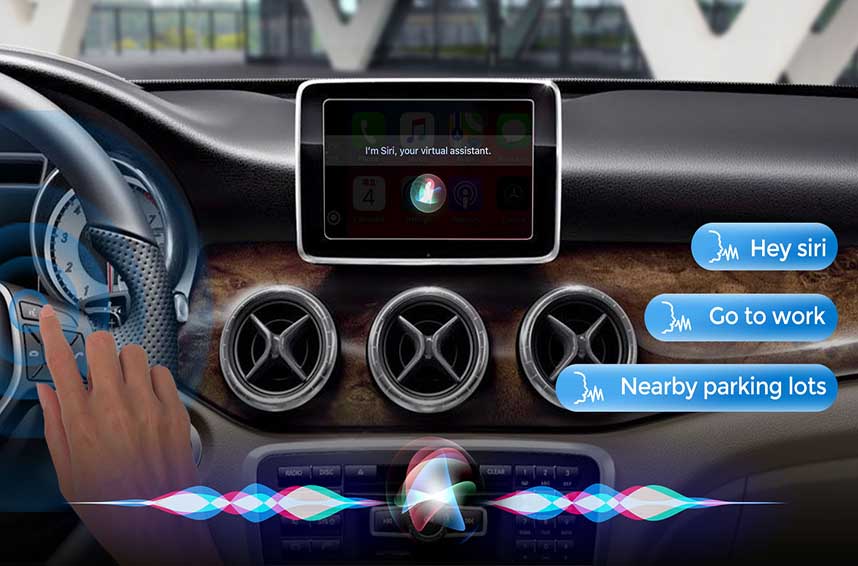
Apple carplay needs Siri to work. If Siri is off, you might not get a good connection. Some features, like voice commands, will not work at all.
Follow these steps to check Siri:
Open Settings on your iPhone.
Tap Siri & Search.
Make sure Listen for “Hey Siri” is on.
Turn on Press Side Button for Siri.
Allow Siri when locked.
If you use a wireless carplay adapter, Siri must be ready before you connect. Some adapters need Siri to start the connection process.
Note: If you see a message about Siri not being available, restart your iPhone and try again.
You can test Siri by holding the voice button on your steering wheel. If Siri answers, you know it’s working. If not, check your settings again.
Advanced troubleshooting can feel tricky, but you can do it step by step. Always check your wireless carplay adapter first, then look for things that block the signal, and make sure Siri is ready. These tips can help you fix even the toughest connection problems with apple carplay.
When to Seek CarPlay Support
Sometimes, you try every trick and wireless carplay still refuses to work. You restart your devices, update software, and reset connections, but nothing helps. At this point, you need to reach out for expert help. Don’t worry—there are clear steps you can take.
Contact Car Manufacturer
If you suspect your car’s system is the problem, you should contact manufacturer support. Your car dealer or service center can check for hardware issues or software bugs. They might know about updates for your car’s infotainment system or fixes for problems with the Reverse camera interface. You can ask them if your car needs a firmware update or if there’s a recall. Sometimes, they can even walk you through troubleshooting steps over the phone.
Write down any error messages you see on your car’s screen.
Tell the support team about the steps you already tried.
Ask if other drivers have reported similar carplay problems.
Tip: Bring your iPhone and any wireless carplay adapters when you visit the dealer. This helps the technician test everything together.
Reach Out to Apple Support
If your car works fine but apple carplay still won’t connect, you should talk to Apple Support. Apple’s team can help you figure out if your iPhone has a software glitch or a hardware issue. You can chat online, call, or visit an Apple Store. They might ask you to run diagnostics or reset your device.
Visit the Apple Support website and search for carplay help.
Use the Apple Support app for quick answers.
Schedule a Genius Bar appointment if you want hands-on help.
If you have tried everything and still can’t get wireless carplay working, expert support is your best option. You don’t have to solve every problem alone.
You learned how to fix wireless carplay issues step by step. Try each tip, from checking settings to updating apple carplay. Most carplay problems have simple solutions. Stay patient and work through each step. If you still need help, reach out to a professional. Solutions are always available!
LEER MÁS





 Red IPv6 compatible

 Español